
About GIS Viewer
Tips on how to use the GIS viewer.
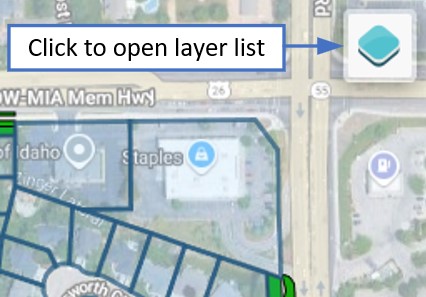
Layer list
By default, only the common areas and parcel property lines are shown. Tap the Layers icon in the upper right corner of the screen to view all available layers and toggle them on or off individually.
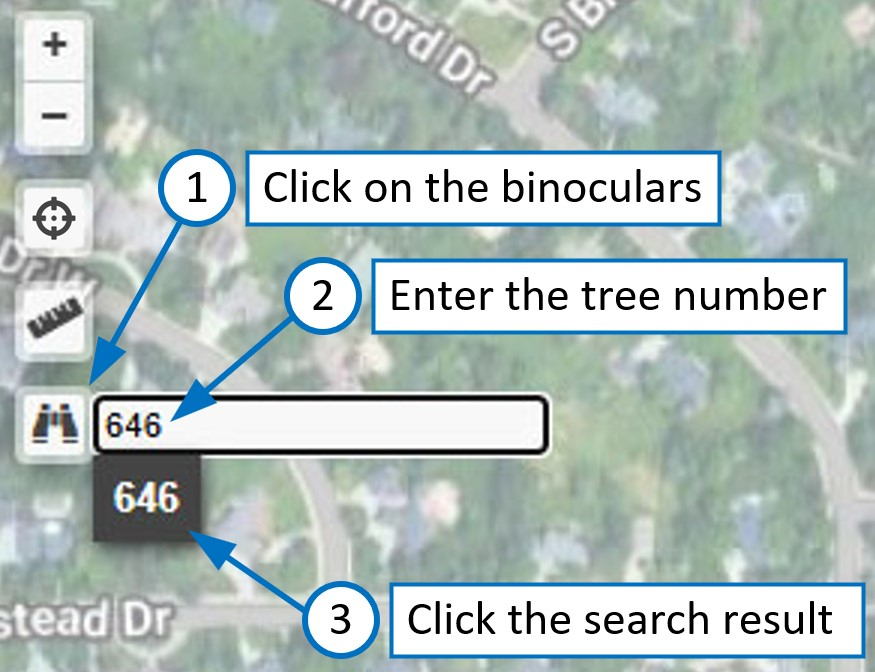
Tree search
If the tree layer is visible, you can search for an individual tree by its unique number. To search for a tree number, tap the binoculars icon on the left side and enter the tree number. Instead of pressing return or enter, tap the search result matching the entered tree number. The view should pan and zoom to that tree.
Some layer features have popups. For example, if you tap on a tree a popup will show some information about the tree.
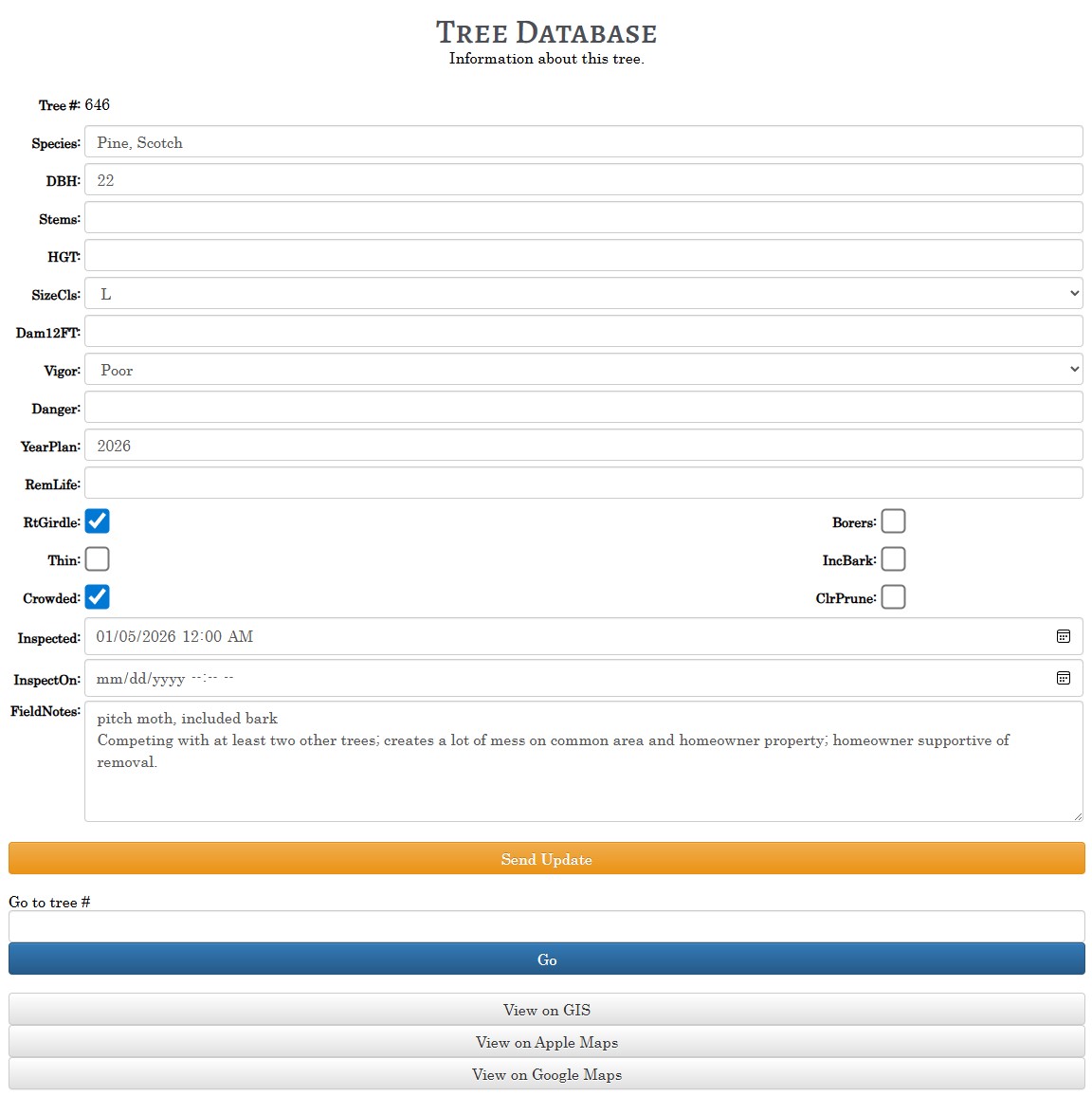
Tree updates
When viewing a tree info popup, click the Details link. This will take you to a form that will allow you to submit updates if you are logged in. Updates are reviewed by an administrator before being merged into the neighborhood QGIS project. After approval your changes will take effect next time you open GIS Viewer.
You may also jump to a specific tree number and tap View on GIS to fly to that tree in GIS Viewer.
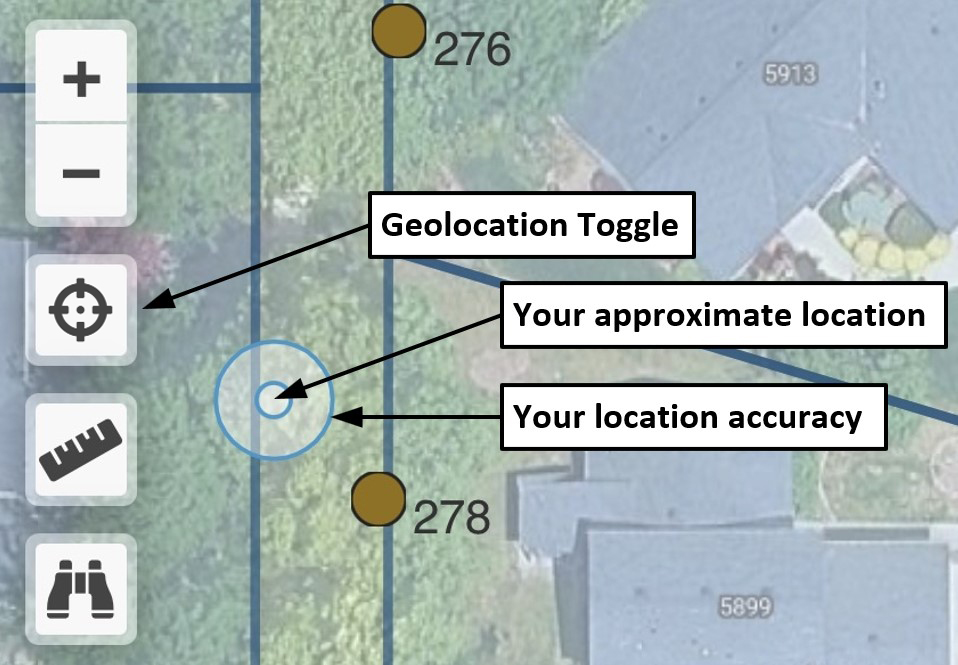
Geolocation
Tap the Geolocation tool to toggle display of your approximate location. Accuracy depends on your device capabilities and whether or not you are allowing the sharing of location via browser with precision. A device that supports dual-frequency GPS is recommended. If using Safari on iOS, go to Settings, Apps, Safari and scroll all the way down to Settings for Websites, Location, Allow. Then go to Settings, Privacy & Security, Location Services, Safari Websites, and set While Using the App and Precise Location.
NOTE: If you are close to your home WiFi network your location may jump to your home. If this happens, turn off WiFi on your device for the duration.
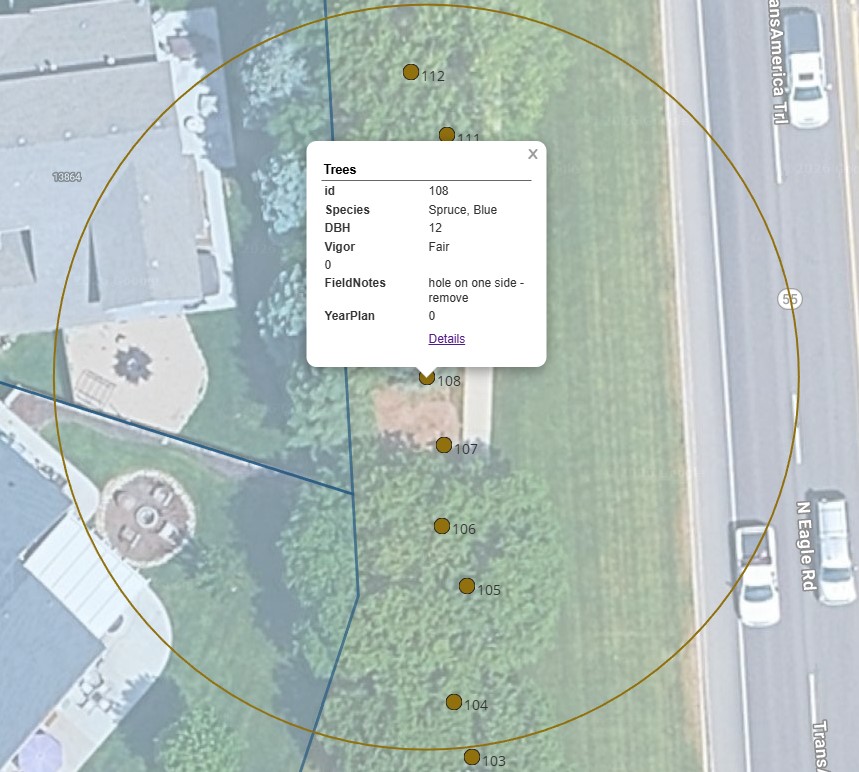
Hypsometer 66' radius ring
Tapping the "View on GIS" button on the bottom of the tree update screen will fly to the tree in GIS Viewer and draw a 66' radius ring to help you position yourself at the distance required to use the Merritt Hypsometer on the Biltmore Tree Stick to measure tree height. Precision Geolocation recommended. How to use a tree stick.
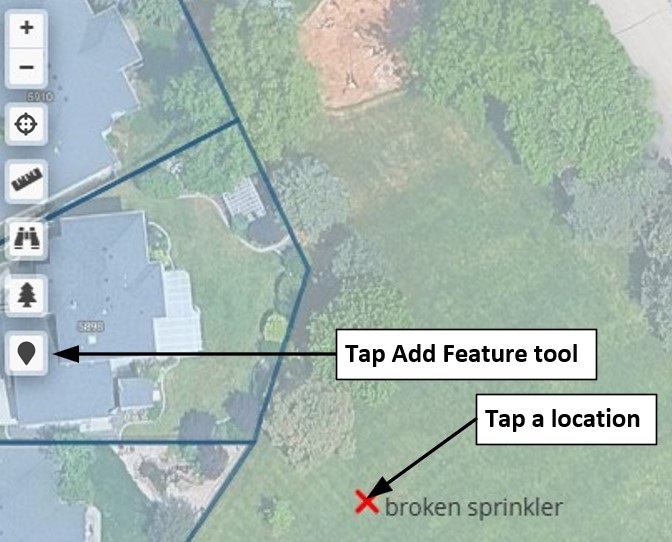
Add & report map markers
Logged in users can tap the Add Feature tool then tap a location to describe what they found. Saving the marker sends a report to an administrator for review. Use this to report anything to the Association that needs to reference a precise location. These markers will remain on the "My Layers" layer and are saved to your browser's local storage. They are not visible to other users. You may remove any of these markers by tapping on them and then tapping on the Remove Marker button. This does not cancel the report that was sent. Zoom in on the map to maximum by spreading your fingers before adding a marker to ensure the marker is placed as close as possible to your intended location.
After you have reviewed the above tutorial, click the button below to begin.